How to Put a Gif as Your Microsoft Wallpaper: Complete Free Guide for Windows 10 and 11
Finding a GIF with enough visual clarity to look sharp across a 1440p or 4K monitor is notoriously difficult. The legacy GIF standard is restricted to an index of 256 colors. This causes noticeable color banding, visual grain, and large file sizes. Large GIF files require surprising amounts of RAM because the rendering software must hold all decoded bitmap frames in memory.
Instead of searching exclusively for `.gif` files, you can use built-in tools like Microsoft Clipchamp to convert smooth video clips into high-resolution loops. Clipchamp exports directly to MP4 or GIF formats. However, modern wallpaper applications like Lively let you set video as desktop background directly.
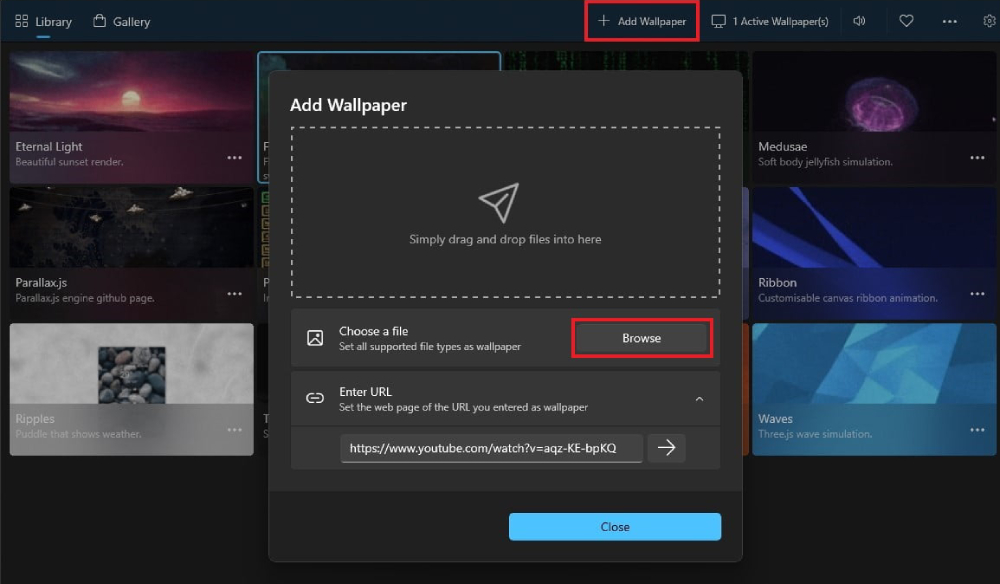
Running an MP4 or WebM video file encoded in H.264 or AV1 delivers sharper image quality than a traditional GIF. It also requires less storage space and decodes directly on your graphics card's hardware media engine. To achieve this, export your preferred loop as an MP4 at 60 frames per second, drag it into Lively Wallpaper, and configure it identically to an animated GIF.




/https://xstreamcp-assets-msp.streamready.in/assets/HOTSTAR_DTH/MOVIE/690de3d3bd29c33a8a099560/images/LANDSCAPE_169/1734079368358-h?o=production)